
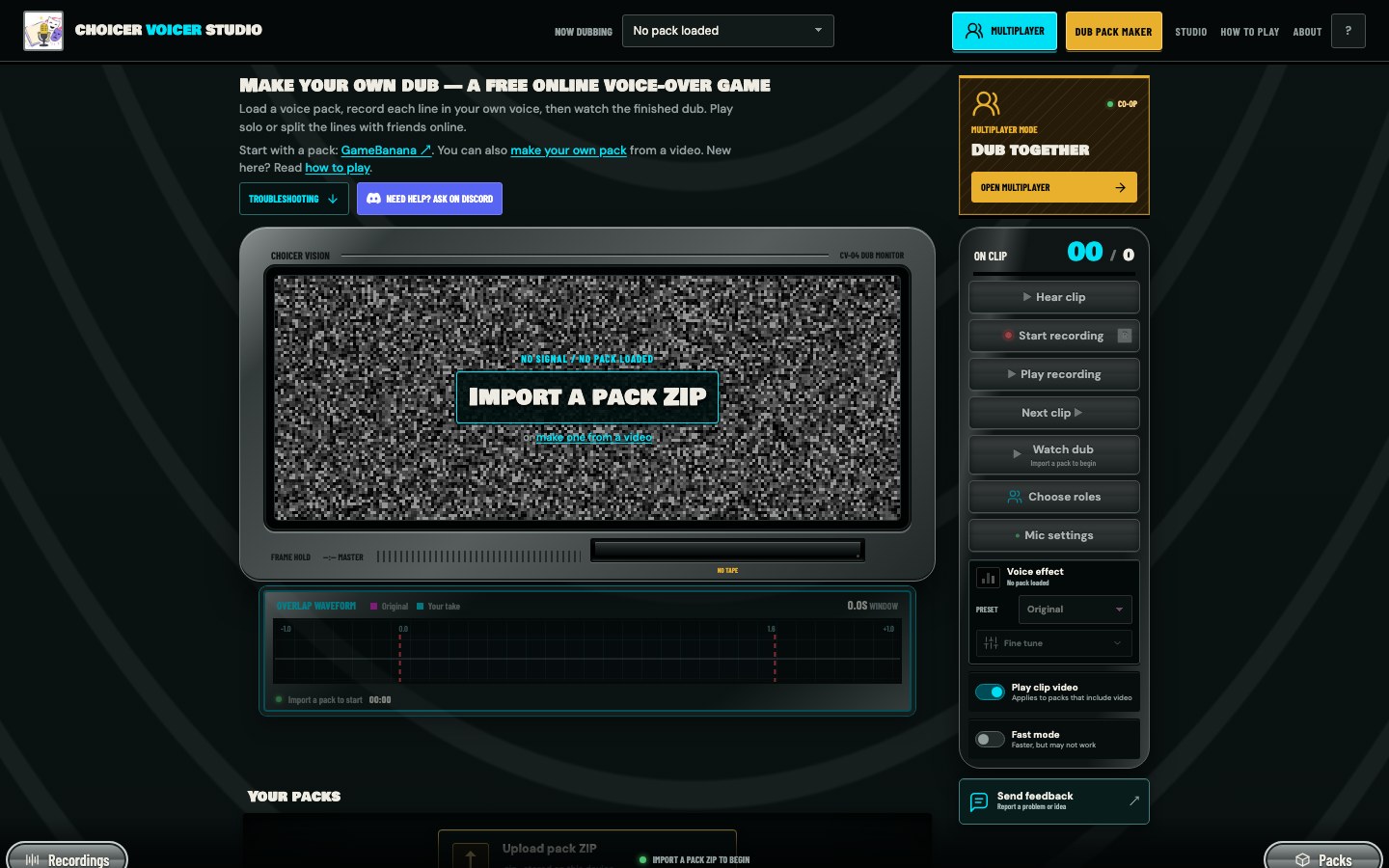
Multiplayer is easiest when the group prepares the pack before opening a room. Send everyone the same ZIP through a method you trust, then have each person import it into the Studio on their own device.
Match the exact pack ZIP
The Studio checks a SHA-256 fingerprint of the ZIP. The title and clip count are not enough. Re-exporting an otherwise identical project creates a different file, so everyone should use the same downloaded archive.
The fingerprint is calculated locally. The room service receives the fingerprint for comparison, not the ZIP, scene video, original lines, images, or backing track.
Ask everyone to import the pack and hear one clip before the host creates the room. That catches a bad download and microphone permission problem early.
Create a room
The host presses , selects Create room, enters a player name, and chooses the local pack. Review and accept the room terms, then create the room.
The room shows a six-character code and an invite link. Share either one only with the people playing. A guest with the link can open the join flow directly; a guest with the code can choose Join room and enter it manually.
Join and choose roles
Each guest enters a name and selects the matching local pack. If the Studio says the pack does not match, stop and replace the ZIP rather than trying files with similar names.
Select one or more roles. Packs with clean character data make this straightforward. A small role can be paired with another, while a character with many lines can stay with one player. The room list shows who has claimed what.
Ready up and let the host start
Press after the pack and roles are correct. The host starts once everyone is ready. From that point, the Studio takes each player through the clips assigned to them.
Players can hear the original, record, replay, and use a voice effect on their own lines. Other roles are skipped. Keep the room tab open so status and takes continue to synchronize.
Finish your clips
Work through the assigned clips as in solo mode. When a take is ready, it is temporarily uploaded for the room. The other devices receive the player recordings they need to build the shared final scene.
Press after every assigned line is recorded. The completion view shows who is done. You can return to Review / re-record if you notice a problem; changing a take updates your finished state until the replacement is shared.
Watch the room dub
When every player has finished and the recordings have synchronized, becomes available. Each device builds the scene locally from its copy of the pack and the room takes.
Pick one person to export the final video so the group does not wait through several simultaneous renders. The exported file is an ordinary local download.
Know what leaves the device
- Stays local
- The pack ZIP, video, stills, original dialogue, backing track, and Pack Maker source files.
- Shared with the room
- Player name, room and progress state, pack fingerprint, selected role data, and recorded voice takes.
- Temporary storage
- Room recordings are automatically deleted within 24 hours of upload and may disappear sooner when the room expires or closes.
Other players may receive and export your recording while the room is active. Play only with people you trust, and do not say private information into a take.
Fast multiplayer fixes
- Pack mismatch: replace every copy with one shared ZIP file.
- A player cannot record: check microphone permission and the selected input on that device.
- The host cannot start: confirm every guest has chosen roles and pressed Ready to play.
- A take is missing: keep both tabs open, check the connection, and let the recording finish synchronizing before closing the room.