
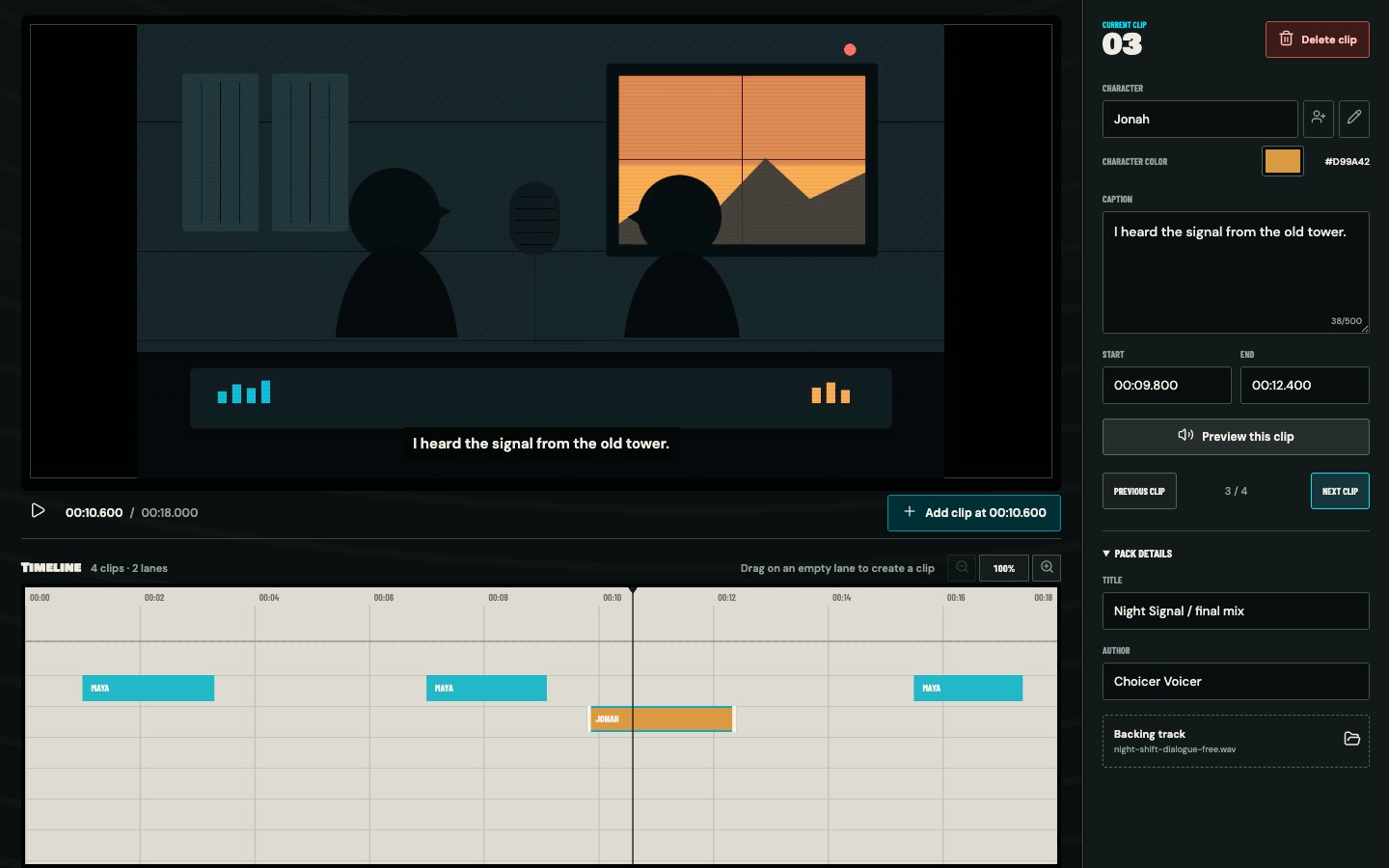
Without a backing track, a finished dub can sound strangely empty. Footsteps, room tone, music, and impacts disappear between the new voices. A dialogue-free mix puts that world back.
Know what belongs in the track
The ideal backing track contains music, ambience, and sound effects, but no spoken dialogue. It begins at the same zero point as the video and runs for the same scene. Production stems, an authorized music-and-effects mix, or audio you created for your own video are good sources.
The full soundtrack is not a substitute. If the original voices remain in the backing track, they will play under the player's new takes and the scene will sound doubled.
Use audio you have permission to process and share. Pack Maker working locally does not change the rights attached to the source material or exported ZIP.
Match the same edit
The backing track and source MP4 need the same opening, cuts, and total timing. A track from a version with a logo, countdown, or longer fade will stay offset throughout. A track from another frame-rate conversion can begin correctly and drift later.
Before adding it, compare a sharp sound near the start and another near the end. A door slam, clap, or music hit makes a better sync point than steady ambience.
Add it in Pack details
Open Pack details in Pack Maker and choose the Backing track field. Common browser audio formats are accepted, including WAV, MP3, OGG, M4A, AAC, FLAC, Opus, and WebM audio.
The filename replaces the placeholder once the browser reads it. If its duration differs from the video by more than one second, Pack Maker warns you. Do not ignore that warning until you know why the lengths differ.
Fix offset before export
Pack Maker does not slide the backing file on a separate timeline. Correct offset in the audio editor you used to prepare the track, export it from the same zero point as the video, then select the corrected file.
- Everything is late
- Remove leading silence from the backing track or restore matching padding to the video.
- Everything is early
- Add the missing opening time to the backing track.
- Start fits, end drifts
- Confirm the track and video came from the same edit and speed.
- Only one section slips
- Look for a cut present in one file but not the other.
Leave space for the new voices
A backing track that is loud at all times makes home-recorded dialogue hard to understand. If you control the mix, lower busy music or effects around speech. Do this before adding the file; the Pack Maker backing field does not provide per-section automation.
Do not make the track nearly silent just to be safe. Room tone and effects are what make the replacement voices feel attached to the picture. Test at ordinary listening volume rather than compensating by turning your device up.
Test the complete scene in Studio
Download the pack or choose . Record quick test takes for every line and open . Listen at the start, at a busy sound effect, and near the end.
If sync drifts, return to the source files. If voices are buried, adjust the backing mix or record closer to the microphone. The final player is the reliable test because it combines the same parts the export will use.
When you do not have a dialogue-free mix
Leave the backing track empty. The original line audio remains available for Hear clip, but it will not be laid under the finished performance as a fake backing track. A dry dub is better than one with two sets of dialogue fighting each other.