
Record a clean take first. An effect can change pitch, color, distortion, and space, but it cannot rescue a clipped microphone or a line delivered at the wrong time.
Start with one preset
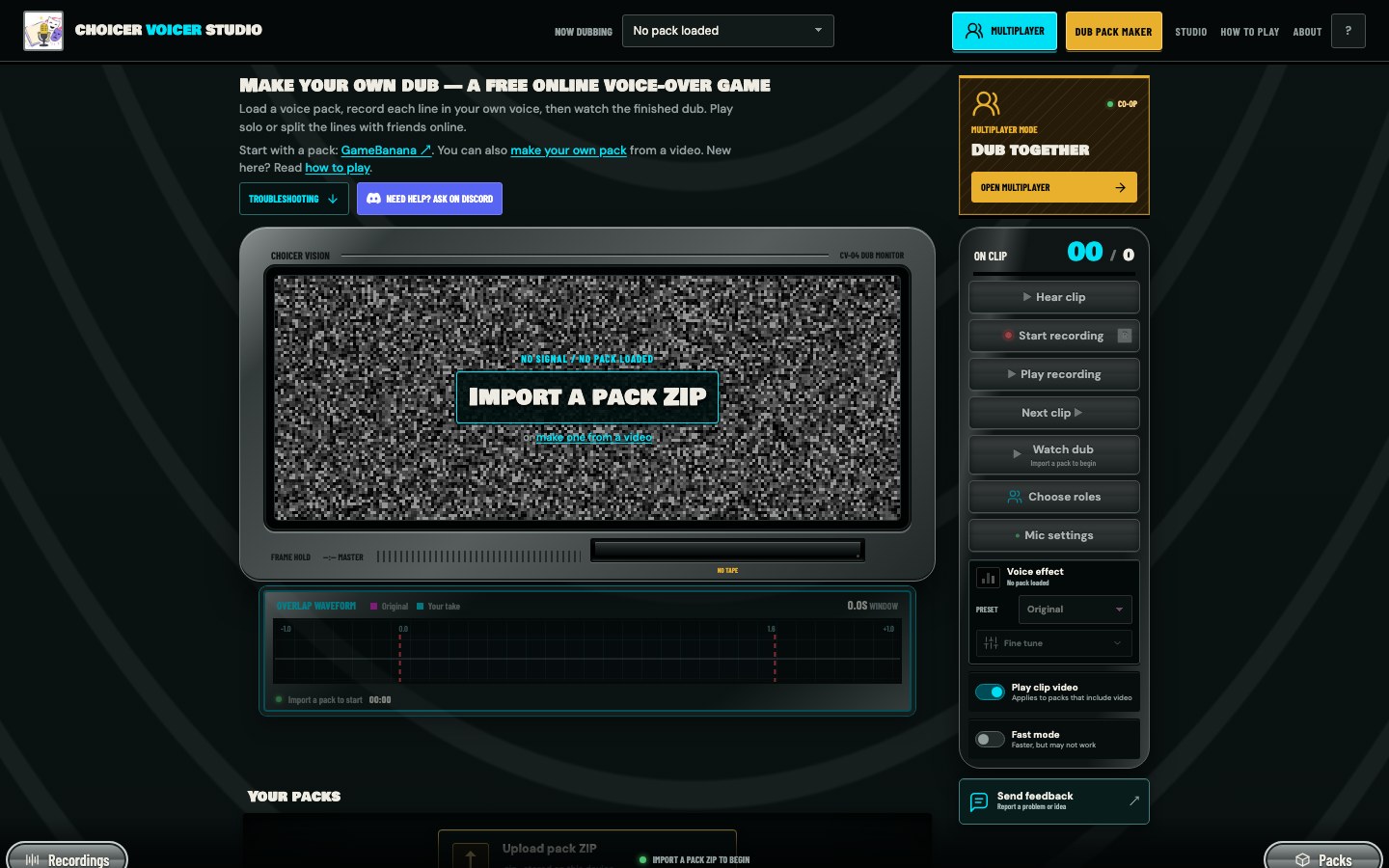
Load a pack and use the Preset menu in the Voice effect panel. Original leaves the take dry. The other presets are starting points: Deep and Cartoon change character, Radio and Megaphone change transmission, Hall and Cave change location, while Robot, Alien, Monster, Chorus, and Underwater use combinations of several controls.
You can select a preset before recording or apply it to a local take afterwards. Press when the panel reports that rendering is complete.
Choose by story, not by name
A preset label is a suggestion. Radio can work for a telephone, security intercom, or cheap television. Hall might fit an empty warehouse better than Cave if the dialogue still needs to stay clear.
- Character size
- Try Deep, Cartoon, or Monster, then check whether the words remain natural.
- Device or speaker
- Start with Radio or Megaphone. These narrow and roughen the tone.
- Physical space
- Hall, Cave, and Echo add different amounts of reflections and repeats.
- Mechanical voice
- Robot and Alien use stronger texture and modulation.
Open Fine tune and learn the six controls
Press to reveal the sliders. Moving any slider creates a Custom setting for that line.
- Pitch
- Moves the voice down or up by semitones while keeping the take on its original timeline.
- Tone
- Negative values darken and soften the voice. Positive values move toward a narrow telephone or radio band.
- Texture
- Adds saturation, digital reduction, and stronger mechanical grit as it rises.
- Space
- Adds short and late reflections that suggest a larger room.
- Echo
- Adds audible delayed repeats. High settings can cover the next line.
- Mod
- Adds chorus movement at moderate values and more synthetic ring-like motion higher up.
Tune one dimension at a time
Start from the closest preset, then move one control. For a monster that is understandable but not heavy enough, lower Pitch a little before adding Texture. For an intercom that sounds too harsh, reduce Tone rather than adding Space to hide it.
Return a slider to its previous value if it does not solve the problem you heard. Stacking six small guesses usually produces a muddy effect with no clear identity.
Consonants carry meaning. Heavy Texture, Space, and Echo can all blur them. If you cannot write down the sentence while listening with your eyes closed, back the effect off.
Check the scene, not only the solo take
A dramatic effect can sound impressive on its own and wrong over the backing track. Open and listen at the handoff between lines. Long echoes and room tails are the usual offenders because they continue after the speaker stops.
Different lines can use different settings, but a recurring character should sound consistent unless the story explains the change. Decide on a base preset for that role, then make small line-specific adjustments only when needed.
Know when to return to Original
If you have spent several minutes tuning and the dry take is easier to understand, use Original. Performance is already a voice effect. A whisper, clenched jaw, changed mouth shape, or doubled delivery can create a character without digital processing.
The best preset is the one you stop noticing once the scene starts.