
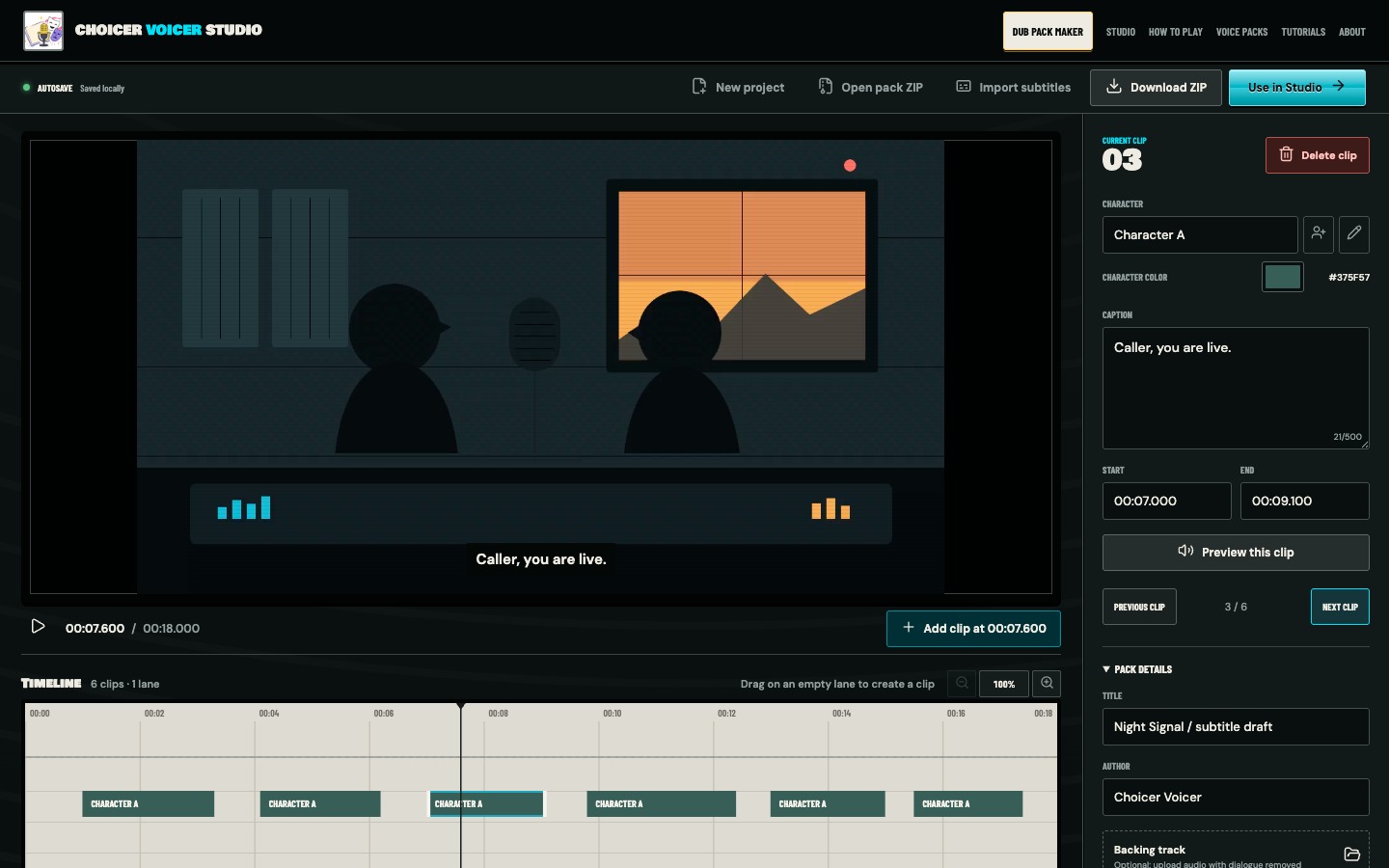
Subtitle import is best treated as a rough assembly. It removes the repetitive work of creating ranges and typing captions, then hands you a normal Pack Maker timeline for the decisions that still need a person.
Prepare matching files
Use an SRT or VTT made for the exact video edit you are loading. A subtitle file from a longer cut, a different frame rate conversion, or a version with a separate opening card may drift even when the dialogue is the same.
Open the MP4 in Pack Maker first. The editor needs the source duration before it can filter and clamp imported cues.
Import the subtitle file
Press in the project bar and choose a file ending in .srt or .vtt. Valid timed cues become clips. Basic inline subtitle markup is removed, leaving the visible words as the caption.
If the project already has clips, the editor asks before replacing them. Accepting removes the current clip list, so download the existing pack first if you may need it later.
It does not detect speakers. New subtitle clips begin under one default character and need to be assigned to the real cast.
Clean the captions
Read through the caption field one clip at a time. Remove cues such as [door closes] if the player is not meant to perform them. Keep a useful vocal cue such as (whispering) only when it changes how the line should be read.
Subtitle line breaks are combined into a single caption. Check songs, two-speaker cues, and captions that use a dash to show a change of speaker. One subtitle cue may need to become two Choicer Voicer clips.
Assign the cast
Select each clip and choose or create its character. Work one character at a time if the scene is long: find every line for the host, then the guest, then background speakers. The colored lanes make missed assignments easier to spot.
When one subtitle cue contains two speakers, keep the original range for the first clip, create another clip over the same time, and give each its own caption and character. Overlapping ranges are valid.
Audit starts and endings
Subtitle timing is designed for reading comfort, not isolated audio. A cue may appear after speech begins or remain on screen after the actor stops. Preview each clip and adjust its edges to the spoken sound, not the on-screen subtitle duration.
Zoom into rapid exchanges. Preserve a fraction of a second before the first word and after the last one, but avoid pulling the next speaker into the clip. If every cue has the same offset, the subtitle file probably does not match the video edit.
Spot offset and drift
- Constant offset
- Every subtitle is early or late by about the same amount. The files may have different opening padding.
- Increasing drift
- Early cues fit but later cues move away. The subtitle and video likely come from different timing versions.
- One bad section
- A scene was inserted or removed in one version. Repair that section manually or find a better subtitle source.
Pack Maker edits one clip at a time, so a badly mismatched subtitle file can cost more time than manual marking. Test the first, middle, and last cue before cleaning all the text.
Run the normal pack checks
- Every imported cue belongs to spoken dialogue worth performing.
- Two-speaker subtitle cues have been separated.
- Every clip is assigned to the correct character.
- Starts and ends follow speech rather than subtitle display time.
- The pack previews correctly in the Studio.